Do you find yourself using the same old boring fonts on Google Slides? You don’t have to be stuck deciding between Indie Flowers and Happy Monkey any longer 🙌
While you cannot add your own custom font into Google Slides, there is a list of fonts Google has that is MUCH longer than the default list given!

Adding Fonts Steps
Step 1: Select a Textbox
Open any Google Slides project.
It doesn’t matter if it is a new or an already existing project.
It could be your upcoming lesson slides, your teacher planner, or your classroom rules slideshow.
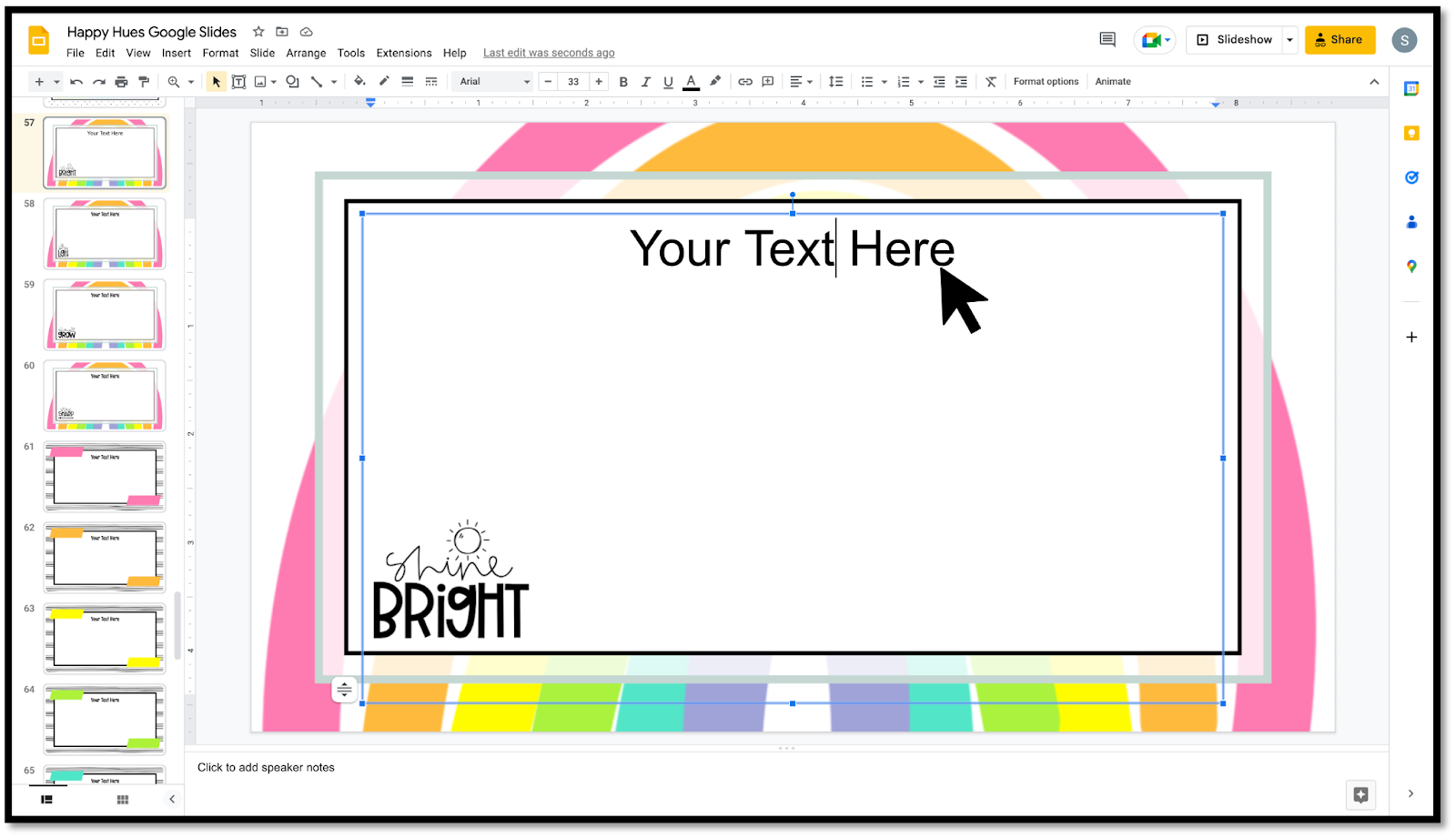
Looking for fun Google Slides templates for your classroom? Grab the slides pictured above in my Etsy store!
Then, click so your cursor is inside a textbox. You will see a blue outline surrounding the textbox when it is successfully highlighted.
Step 2: Open the Fonts Dropdown Menu
When you have highlighted a textbox, click the arrow next to Arial (or whatever the default is) to choose a different font.

After clicking on it, you will see the normal, standard list of font options to choose from.
Step 3: Open the Master Font List
At the top of the font drop-down menu, choose “More fonts”.
A pop-up box will come up with a list of fonts to choose from!

Step 4: Add a Font!
Adding a font to Google Slides can be done in two different ways:
1️⃣ Scroll through the master list until you find a font that catches your eye
2️⃣ Search for the name of a specific font
Try typing “Staatliches” in the search bar!

Click on the font that appears. (It should turn blue once you have selected it.)

When you are finished adding new fonts, click “OK” at the bottom of the pop-up box.
Repeat this for as many fonts as you would like to add 😊
My Favorite Google Fonts as a Teacher
While it can be fun to scroll through all the font options Google actually has, it can take some time!
Here are my 4 favorite fonts I like to use on Google Slides!

✨Staatliches
I think this font is the most similar to KAHighway, which is a font I LOVE using in my PowerPoint resources.
✨Rum Raisin
This font is cutesy but still very legible!
✨Luckiest Guy
This is another thick and bold font- it’s super cute for titles and would work well as bulletin board letters!
✨Acme
This font is another great option!
Have fun personalizing your classroom Google drive items with these new fonts at your fingertips!

Here is an example of the fonts “Staatliches” (the heading) and “Rum Raisin” for the text.
If you are looking for a Google Slides template to pair your new fonts with, grab my Happy Hues Google Slide Templates.
(The rainbow background slide pictured in this blog post is just one of many slides included in this resource!)
Now that you have an endless number of fonts at your disposal, put them to use in your classroom! 🤩 Check out my Engage Students with Google Slides Templates blog for some new ideas on how to use slides in your classroom.