Technology is all the rage in education these days, but there are some specific ways you can use these FREE technology tools for teachers in the elementary classroom to help you save time and keep things new, fresh, and exciting for your students!

Tools to Save Time with Lesson Planning- Engaging Lessons Planned for You! 🤩
Here are some of my favorite technology tools that have lesson ideas, or lessons already created for you to use with your students!
⭐ Interactive Slide Decks
Spice up your lessons with interactive slide decks!
Nearpod and Pear Deck offer great options where students can answer questions, play a game, or go on a virtual field trip.
If you want to learn more about nearpod, check out the video below from Pocketful of Primary to see the different features available and how easy it is to transform slides you have already created.

Both of these platforms also have lessons already created to save you time!
No Prep Assignments
I don’t know what it is, but my students were always WAY more willing to do math problems if it involved technology somehow. 😂
⭐ Freckle and ⭐ Khan Academy are great websites that can provide your students with lots of practice / review problems for different ELA or math concepts.
Instead of having to hunt for additional worksheets or practice problems to have your students do, these websites have questions already created to go with each lesson or concept being taught 🙌
Below is a visual of what a Freckle assignment looks like! I chose a place value math standard and Freckle created 10 practice questions around that standard for my students to practice.

The beautiful thing is it gives them feedback in real time, and students can click the “video” button on the right hand side if they get stuck.
My students especially love Freckle because they earn “coins” as they answer questions correctly that they get to “spend” in the store for fun accessories for their animal. 😌
If planning lessons is taking you a long time and you are looking for some ideas on how to save yourself time, check out the ideas I share in this blog post!
Technology Tools for Storing & Organizing Your Lesson Plans
Here are some digital resources that could help change up what lesson planning looks like for you:
⭐ CommonCurriculum – a free website that basically is your lesson planning book.
Create different lesson templates for each of your different subject areas, easily link standards to each lesson, write out lesson objectives, bump lessons that don’t happen that day, and copy everything with the click of a button.
⭐ Google Drive – a digital place to store your lesson plans
Stage 3: Finding Leveled Texts with Questions
This was an area that would always take me sooooo long as a teacher.
Answering the question “But what can my students read to practice this skill?”
Yes, reading whole books is great, but sometimes you don’t want to spend 2 weeks reading the same book.
Thankfully, there are some websites and tools that provide you with hundreds of different articles that include comprehension questions already created!
⭐ CommonLit
This website is filled with hundreds of articles on different topics, so you can always find something that connects with your lesson.
Another bonus to this website is it will display the lexile level of the text, so you aren’t guessing if it is a good match for your students! Here is a sample 4th grade informational text (although you can choose any 3rd grade – 12 grade text) and you can assign comprehension questions to your students that go with each text (as shown on the right!)
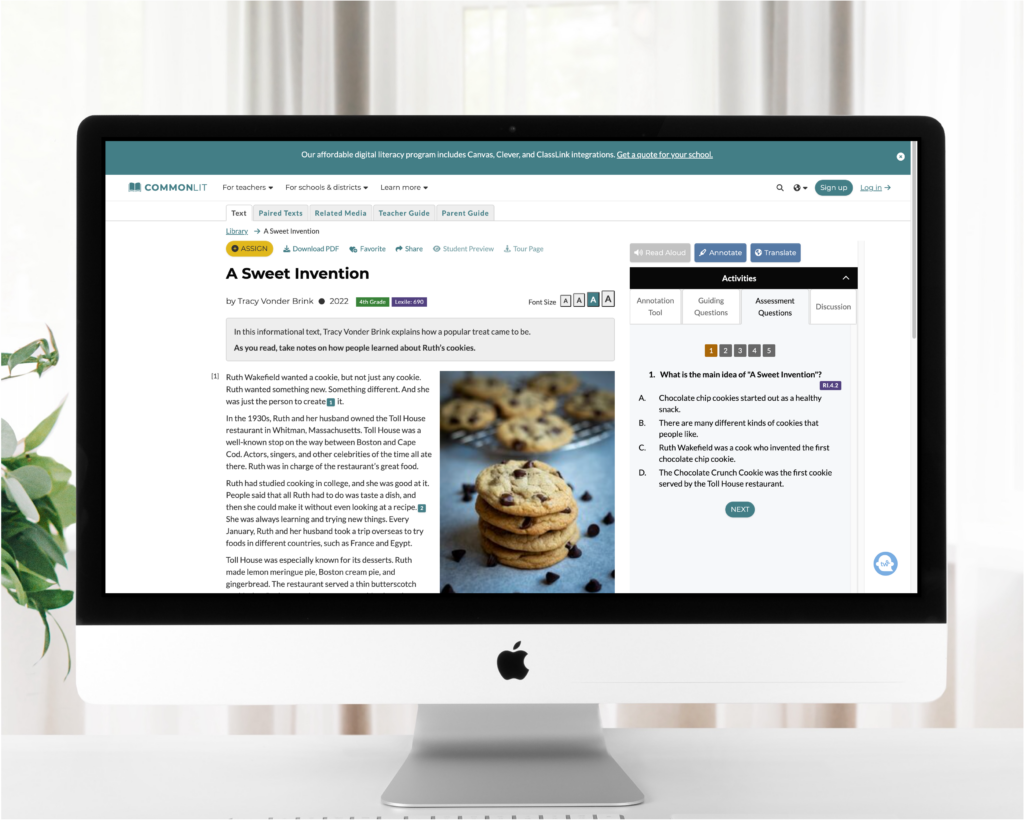
This free site includes book pairings, texts, text sets, units, and more!
⭐ Wonderopolis
Wonderopolis is an amazing resource that feeds on students’ curiosity.
Each article is formatted to answer a question about a certain topic.
Explore topics connected to food, famous people, different cultural events, as well as scientific concepts.
Watch the video below created by the National Center for Families Learning for a tour of the Wonderopolis website and a peek into all the different features it offers!
Students love exploring around on this website and are sure to find something that is interesting to them and learn something along the way!
Free Technology Tools for Teachers: Review Games
Students LOVE playing games.
Bringing a game into the classroom has the same effect as candy does. (And it is a LOT cheaper 😉)
Once you have taught the lesson, a great way to practice the skill or concept is through a game!
The only downside is, creating those games can often take a lot of time. So, here are a couple of websites that make creating and playing these games easy and fun!
⭐ Kahoot
Always a classic, Kahoot is a great multiple-choice game.
When you sign up, it will show you a bunch of a paid options but below it, you can click “continue for free” for the free version!

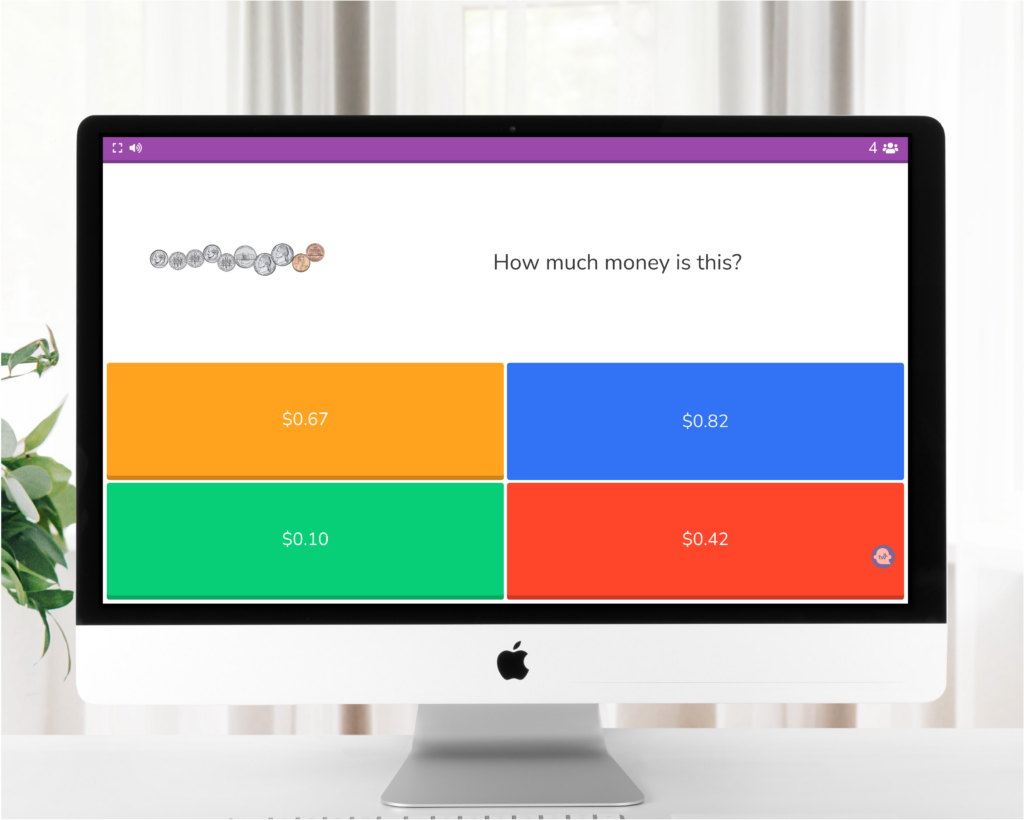
Here is a sample 2nd grade math review Kahoot! Students choose the answer on their device (ipad, laptop, computer) based upon the question on the screen. It keeps their score so students love playing kahoots!

Students choose between the different colorful shapes on their devices to select the correct answer.
⭐ Blooket
Blooket is very similar to Kahoot, but gives a few other styles to the game. The foundation is still the same – you are answering multiple-choice questions as quickly and correctly as you can win.
But Blooket adds some fun twists – maybe you are trying to collect the most money by selecting chests and stealing from your classmates, or maybe you are trying to run the most successful restaurant by filling orders, or maybe you are defending your castle from invaders.
Students LOVE these little twists and have great fun at these games.
As a bonus, both of these websites have games already created that you can simply pull up and play — no time spent creating the game on your end is needed!
⭐ Prodigy
Maybe you are looking for a fun way to spice up independent work time. Or need an incentive to help your class work towards that costs you nothing (money, time, brain-power).
Prodigy is a great option to allow students to practice their math and ELA skills at their own pace, and level in a way that doesn’t feel like work to them! 👍
If you haven’t heard of it before, definitely check it out…kids LOVE it!
As a plus, you can create different assignments on Prodigy to have students practice specific skills before they jump back into their own independent journey.
Stage 5: Grading…
Ah, the dreaded part of teaching. 😭 More accurately known as the thing that takes forever. 😂
Below are a couple of technology tools you can use (most of which were already mentioned) to help save you time as you grade assignments and know how your students are doing.
Wanting more tips and hacks for how to save time grading? Check out the blog post I created filled with ideas here!
Auto-Grading Math / ELA practice
Many of the previous websites will provide you with a snapshot of how your students are doing on different things.
⭐ Nearpod, ⭐ Khan Academy, and ⭐ Freckle will all give you reports on which questions the students got correct and which ones they struggled with.
Below is a sample report from Freckle. You can see how many students completed the assignment, and if you click the “By Student” tab you can see how each student scored.

That is an amazing way to grab the data you want about who gets it and who needs a little more support without spending hours grading multiple-choice quizzes.
Prodigy shows you exactly how students are doing on the different concepts and skills they are being quizzed on, which is fantastic!
⭐ Plickers
Another way to use technology in the classroom to help you out with grading is by using a website called Plickers.
The beautiful thing about this website is you only need one device – yours!
You can create question sets on the Plickers website for students to answer. Then, give each student their very own QR code.
Display the questions to your students and have each student hold up their QR code. (Depending on which edge they hold up, they select a different answer.)
Scan your device around the room to “collect” their answers and immediately see which students are correct and which ones are wrong.
For a quick 2 minute video tutorial on how to use Plickers, check out the video below 🙂
This is a great way to really quickly grab feedback via an exit ticket or something similar to see which students are tracking and who might need a little more help.
When we think of technology in the classroom, we often only think about it in terms of how it is helping our students learn or create or achieve different things.
We often forget that there is technology out there to help make our jobs as teachers easier too!
So, the next time you are feeling stumped as you are trying to craft the perfect lesson, pull out one of these tools from your back pocket!