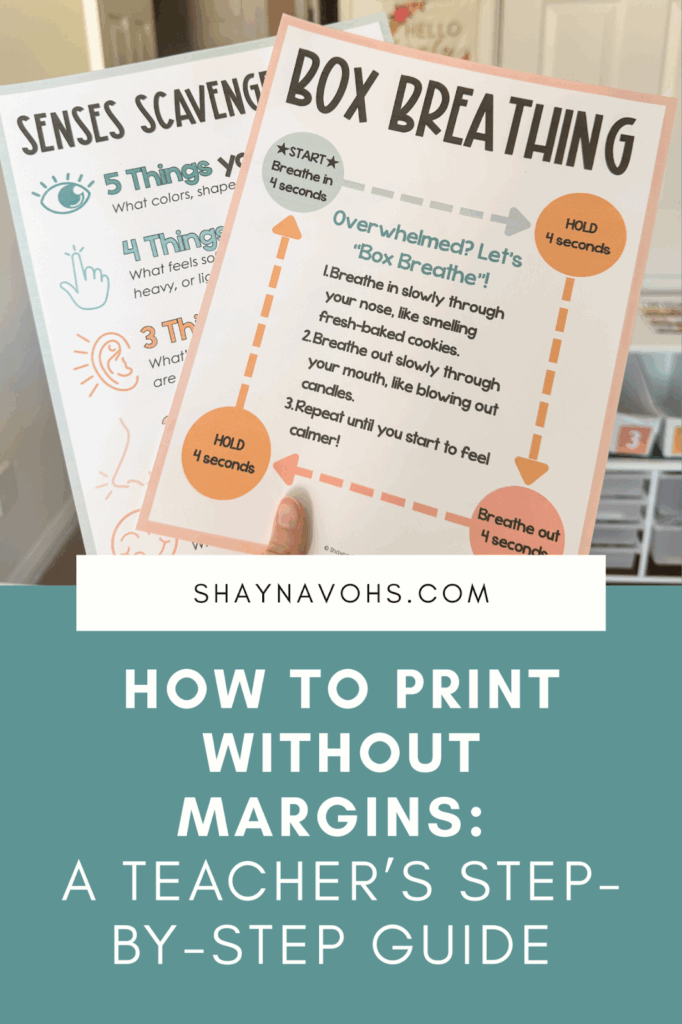
Ever wonder how to print without the white margins on your posters?
Because they do really throw a wrench in those adorable inspirational posters you found for your classroom.
And you don’t need to add something else to your to-do list like chop the white borders off of all your classroom decor.
That’s just silly 🤪
Here’s your quick how-to guide to eliminate those white borders from your pages for good. 🙌
1 – Open the PDF 💻
Start by opening the PDF that you want to print without margins.

These quick steps will save you SO much time, and make your print-out look that much cleaner.
2 – Click Print 🖨️
Go through the normal steps you take to print off a PDF.
(This is the process for using Adobe – yours might look slightly different!)

When the print dialogue box opens up, move onto the next step!
3 – Click Page Setup 📄
Off to the left-hand side, you’ll see a button that says “Page Setup”.
Click that!

It will open up “hidden” options for how to print off your document.
4 – Say Yes 🙂
Don’t worry when you get this pop-up message, that means you’re on the right track!

Simply choose yes, you want to continue.
5 – Select Your Printer 🖨️
Choose the specific printer you are going to send the document to.
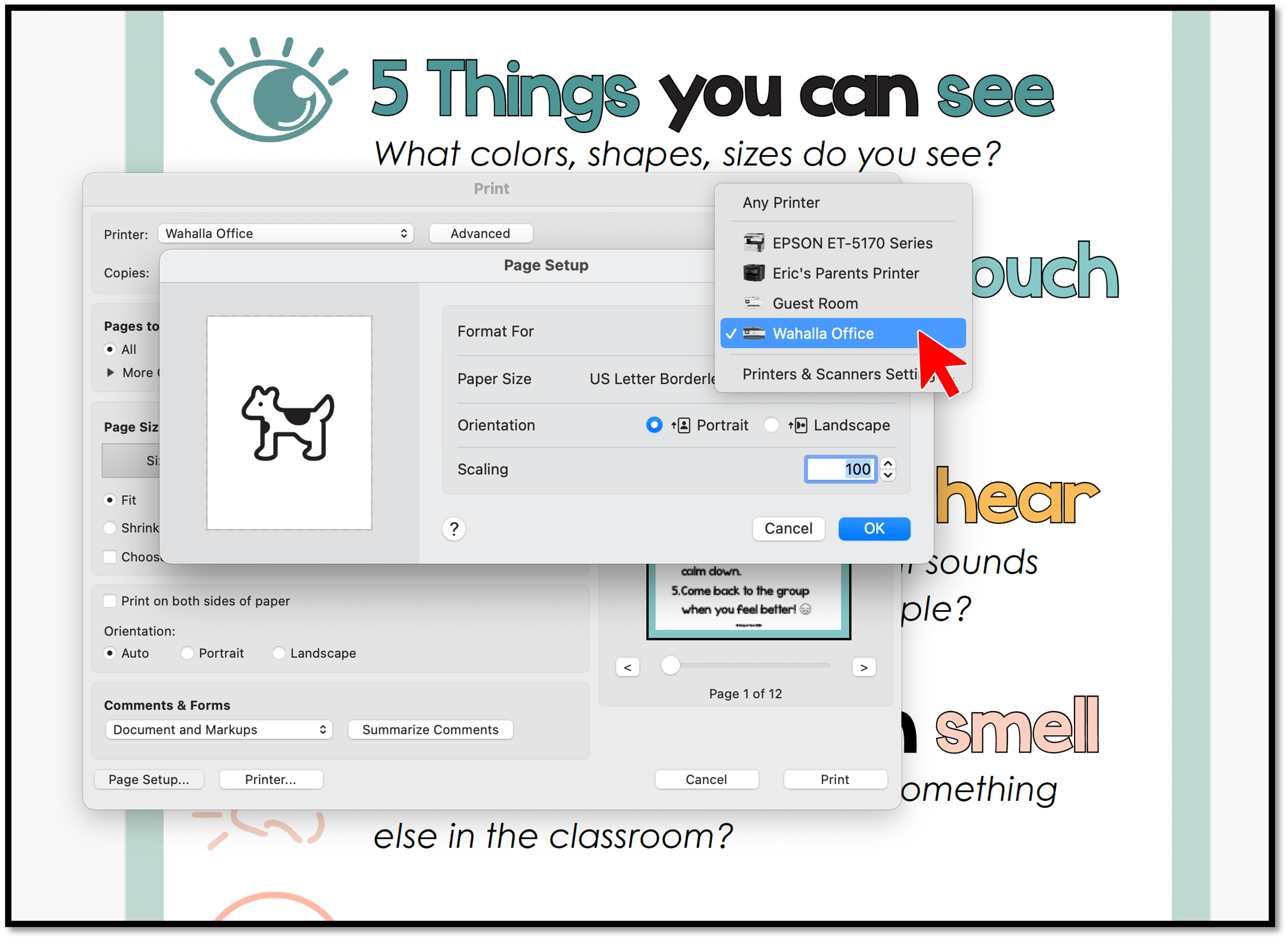
6 – Choose US Letter Borderless ✅
And now for the magical step!
Under “Paper Size”, you’re looking for the US Letter Borderless option.

You might have to scroll down towards the bottom to find the US Letter options!
7 – Print Away 🎉
Now that you’ve found the magical property, you’re ready to hit “Print”!

And out of your printer will come a magical document with no trimming required. 🙌
Check out the before and after below ⤵️

That’s it!
It’s a pretty simple process to eliminate the white borders and save yourself some time.
And now you have gorgeous posters for your classroom without any margin!
And if you don’t have Adobe loaded on your computer, try playing with your printing settings & look for a US Letter Borderless option on your Paper Size setting.
Chances are, you’ll find one!
For more ways to up your printing game, check out my how-to guide on printing posters at home and printing student handouts. No fancy equipment required.